Use GradeWithAI with any LMS
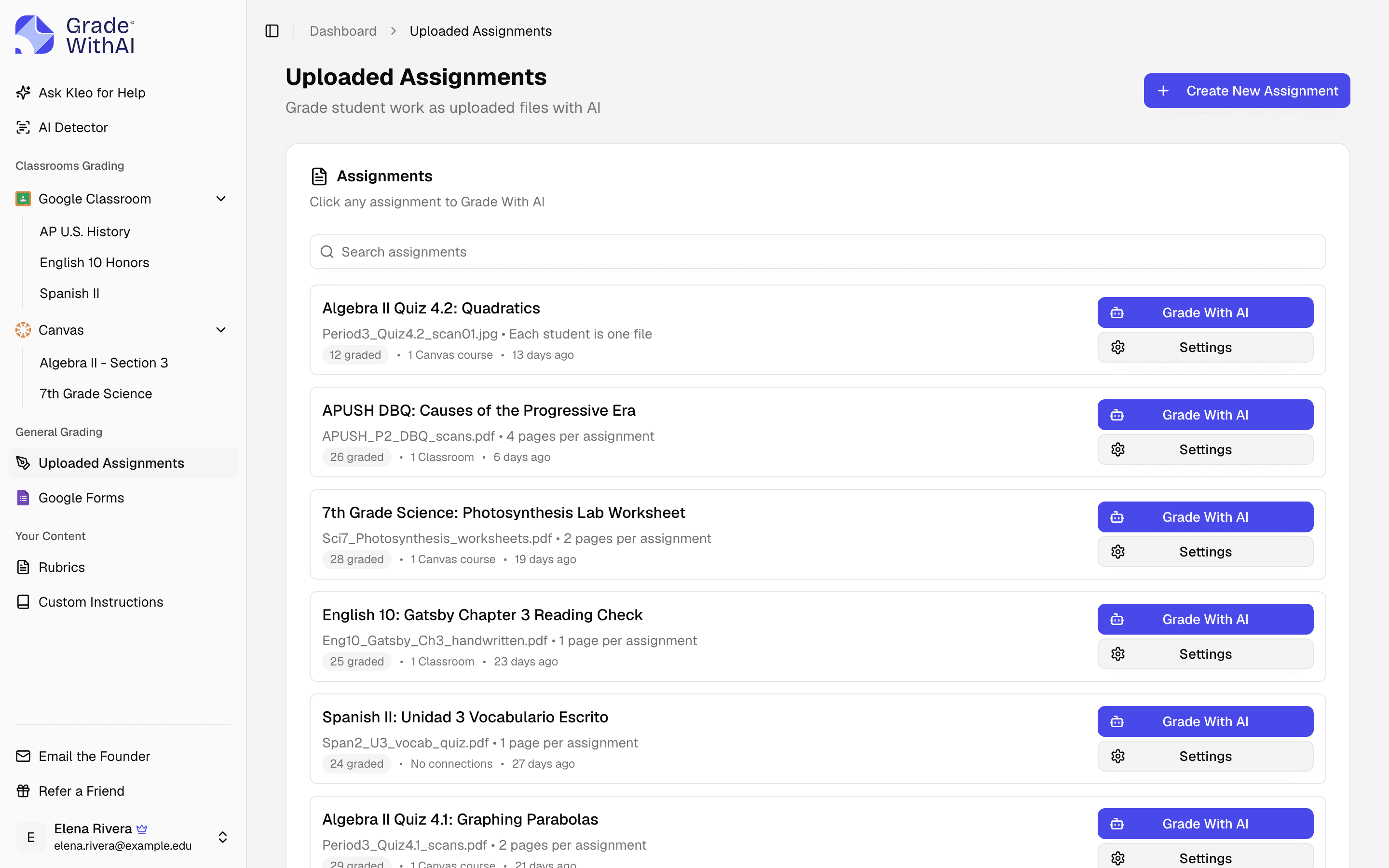
GradeWithAI syncs with Canvas, Google Classroom, and Google Forms. With Schoology, Blackboard, Moodle, Brightspace, Microsoft Teams, or any other LMS, upload the student files and export grades as a CSV or PDFs.
What each integration does
| LMS | How it works | Plans |
|---|---|---|
 Google ClassroomGoogle Classroom grading Google ClassroomGoogle Classroom grading | Courses, assignments, and turned-in files sync in. Scores and a feedback link go back for assignments created or reposted in GradeWithAI. Pro adds auto-grading when students turn work in. | Plans: Every plan |
 CanvasCanvas grading CanvasCanvas grading | Connect with a personal access token. Assignments, Classic Quizzes, and discussions sync in; scores post to the gradebook and feedback as a comment in SpeedGrader. | Plans: Every plan |
 Google FormsGoogle Forms grading Google FormsGoogle Forms grading | Grades short-answer, paragraph, and file-upload questions. Scores go to Classroom or Canvas, or out as a CSV. | Plans: Every plan |
| SchoologySchool plans | Sync set up for your school or district during onboarding. On Free and Pro, use file upload and CSV export. | Plans: Schools & Districts |
 Microsoft TeamsGrading Teams assignments Microsoft TeamsGrading Teams assignments | No connection. Download files from Teams Assignments and upload them, then export a CSV of scores and feedback PDFs to enter in Teams. | Plans: Every plan |
| Blackboard, Moodle, Brightspace, and any other LMSHow uploads work | Upload the student files, then export a CSV of scores and a feedback PDF for each student. | Plans: Every plan |
How uploads work with any other LMS
- 1
Download the files
Download the student submissions from your LMS. PDF, Word, PowerPoint, and image files up to 50 MB each work.
- 2
Upload and grade
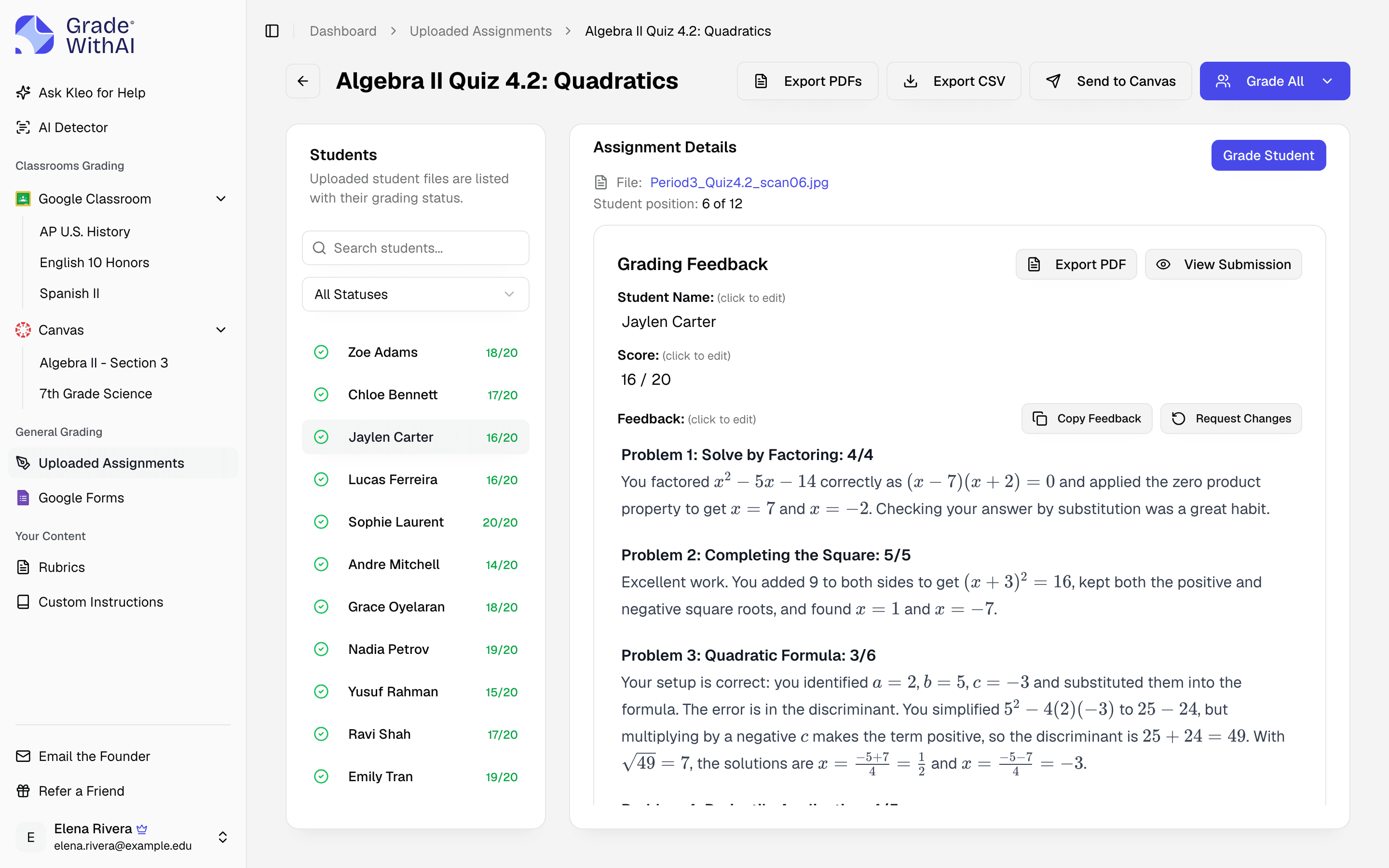
Create an uploaded assignment with one file per student, or one file for the whole class and the number of pages per student. GradeWithAI reads each student's name.
- 3
Export the results
Review and edit the scores and comments, then export a CSV of scores and a feedback PDF for each student.
LMS questions
Answers to common questions from teachers and school leaders. Something not covered here? Email john@gradewithai.com.
Schoology sync is available on Schools & Districts plans and is set up during onboarding. On Free and Pro, download the files from Schoology, upload them to GradeWithAI, and export a CSV of scores.
There's no Teams integration. Download the files from Teams Assignments, upload them, and grade them against your rubric. Then export a CSV of scores and per-student feedback PDFs and enter them in Teams.
Yes, through file upload. Upload PDFs, Word or PowerPoint files, or photos of student work, then export a CSV of scores and a feedback PDF for each student. There's no direct sync with these systems.
Yes. Canvas, Google Classroom, and Google Forms sync are on every plan, including Free. Schoology sync is on Schools & Districts plans.
Yes. Choose "All students in one file," enter the number of pages per student, and GradeWithAI splits the file and reads each student's name. This works with PDF, Word, and PowerPoint files.
PDF, Word, PowerPoint, PNG, JPEG, WebP, HEIC, and HEIF, up to 50 MB per file. A single file with the whole class must be a PDF, Word, or PowerPoint file.
Last updated
Grade your next assignment with GradeWithAI
21,000+ teachers have graded 2,000,000+ student submissions with GradeWithAI. The free plan covers 25 submissions every 30 days.
Free plan · No credit card required
Reported by teachers using GradeWithAI, with feedback on every submission they grade.